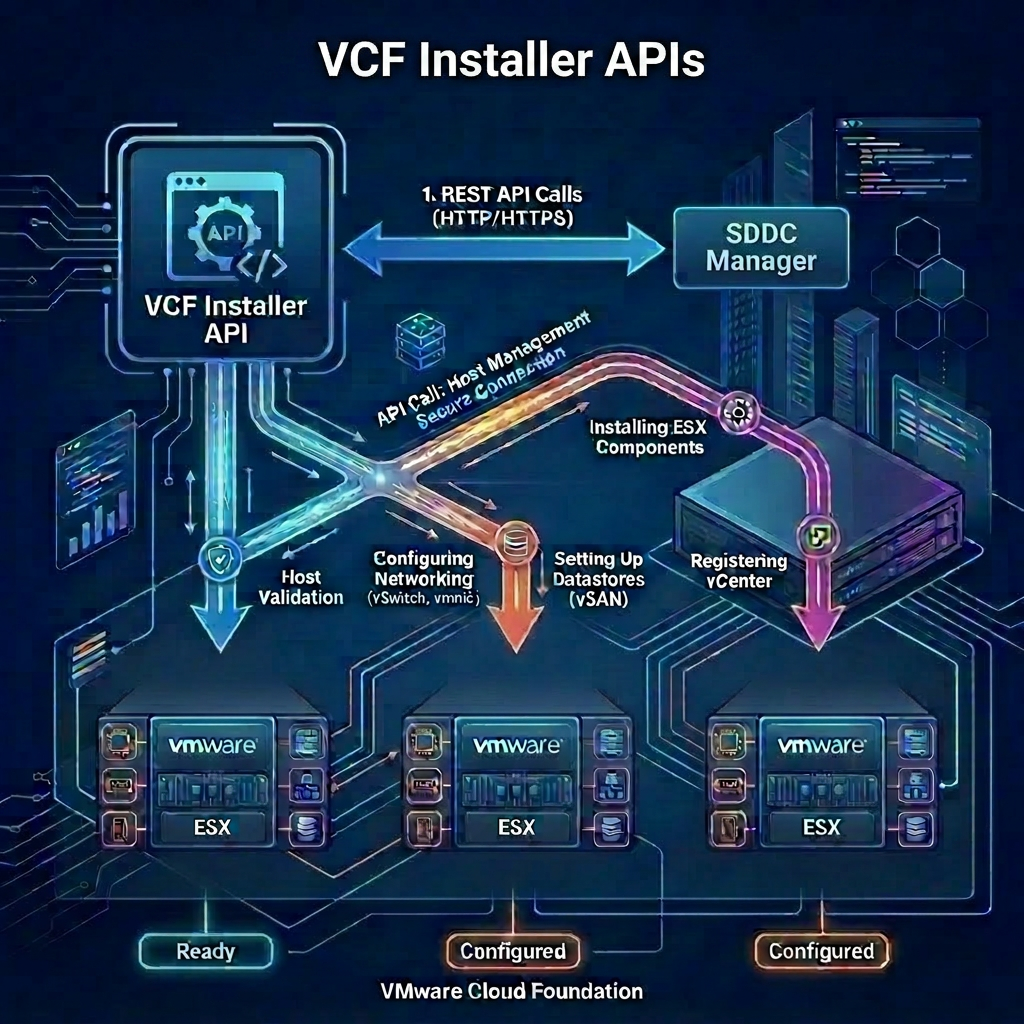
The first step to automating the deployment of a new VMware Cloud Foundation platform is the creation and validation of your JSON specification file. This JSON specification file describes the environment to be configured.
There are a few ways in which you can build your JSON specification file, probably the easiest is through the use of the Planning and Preparation Workbook and a PowerShell utility my friend and colleague Ken Gould created called VCF.JSONGenerator (for a full rundown of the tool see Ken’s blog post Introducing the VCF.JSONGenerator PowerShell Module for VMware Cloud Foundation).
Once you have your JSON specification file created, its critical that you perform the validation step prior to performing the actual deployment.
VCF Installer APIs Used
- POST /v1/tokens
- GET /v1/sddcs/validations
- GET /v1/sddcs/validations/{id}
- POST /v1/sddcs/validations
VCF Installer API Reference Guide
Procedure
-
Connect to a system that has access to the infrastructure and is capable of running CURL.
-
Create your JSON specification file and ensure its available to your system. In my case the file is named
sfo-m01-domainSpec.jsonand I used the Planning and Preperation Workbook plus VCF.JSONGenerator. -
Replace the values in the sample code with values for your VCF Installer instance and paste the commands in the console.
export vcfInstallerFqdn='sfo-ins01.sfo.rainpole.io'
export vcfInstallerUser='admin@local'
export vcfInstallerPass='VMw@re1!VMw@re1!'
- Authenticate to VCF Installer and obtain a token by running the following command:
vcfInstallerToken=$(curl -k -X POST https://$vcfInstallerFqdn/v1/tokens \
    --header "Content-Type:application/json" \
    -d '{"username": "'$vcfInstallerUser'","password": "'$vcfInstallerPass'"}' \
    | jq -r '.accessToken')
- Start a validation task using your JSON specification file by running the following command:
validationId=$(curl -k -X POST https://$vcfInstallerFqdn/v1/sddcs/validations \
    --header "Authorization: Bearer $vcfInstallerToken" \
    --header "Accept: application/json" \
    --header "Content-Type: application/json" \
    -d @'sfo-m01-domainSpec.json' | jq -r ".id")
- The validation will take some time but you can check its progress by running the following command:
curl -sk -X GET "https://$vcfInstallerFqdn/v1/sddcs/validations/$validationId" \
    --header "Authorization: Bearer $vcfInstallerToken" \
    --header "Accept: application/json" \
    --header "Content-Type: application/json" \
    | jq '{status: .status, executionStatus: .executionStatus}'
- The command in step 6 would need to be run multiple times, alternatively you can run the command over and over by running the following command:
while curl -sk -X GET "https://$vcfInstallerFqdn/v1/sddcs/validations/$validationId" \
    --header "Authorization: Bearer $vcfInstallerToken" \
    --header "Accept: application/json" \
    --header "Content-Type: application/json" \
    | jq '{status: .status, executionStatus: .executionStatus}' \
    | grep -q "IN_PROGRESS"; do
    echo "Still in 'IN_PROGRESS' state... waiting 60 seconds."
    sleep 60
done
- Once the execution status is complete you can check for the overall status of the validation task by running the following command:
curl -k -X GET "https://$vcfInstallerFqdn/v1/sddcs/validations/$validationId" \
    --header "Authorization: Bearer $vcfInstallerToken" \
    --header "Accept: application/json" \
    --header "Content-Type: application/json" \
    | jq -r ".resultStatus"
Assuming the validation completes without issues you are ready to deploy VMware Cloud Foundation.
Leave a Reply