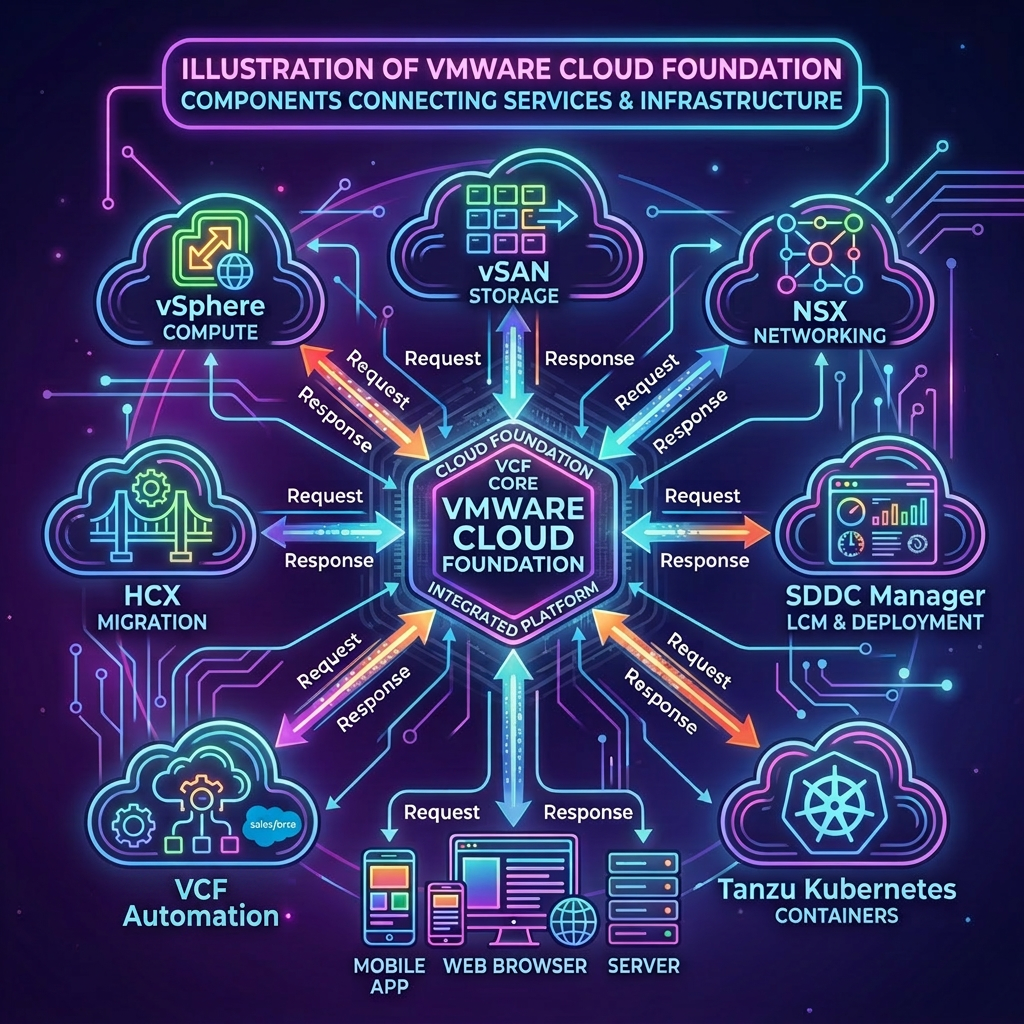
Once you have reconfigured the SFTP backup location which is defined using SDDC Manager and covers the configuration of both SDDC Manager and NSX Manager, you need to configure a schedule for NSX Manager performing regular backups.
In this post we will look at how this can be done using the public APIs, this is achieved via NSX Management cluster.
NSX Manager APIs Used
- GET /api/v1/cluster/backups/config
- PUT /api/v1/cluster/backups/config
Procedure
-
Connect to a system that has access to the infrastructure and is capable of running CURL.
-
Replace the values in the sample code with values for your NSX Manager instance and paste the commands in the console.
export nsxManagerFqdn='sfo-m01-nsx01.sfo.rainpole.io'
export nsxManagerUser='admin'
export nsxManagerPass='VMw@re1!VMw@re1!'
- Replace the values in the sample code with values for your backup schedule and paste the commands in the console.
export hourOfDay='23'
export minuteOfDay='0'
export daysOfWeek='1, 2, 3, 4, 5'
export inventoryInterval='240'
- Retrieve the current configuration by using the following command:
currentConfig=$(curl -k -X GET "https://${nsxManagerFqdn}/api/v1/cluster/backups/config" \
    -u ${nsxManagerUser}:${nsxManagerPass} \
| jq)
- Create the JSON payload for the backup schedule, adjusting settings to match your needs by running the following command:
cat << EOF > backup-schedule-nsx.json
{
    "remote_file_server": {
        "server": "$(jq -r '.remote_file_server.server' <<< "$currentConfig")",
        "port": $(jq -r '.remote_file_server.port' <<< "$currentConfig"),
        "protocol": {
            "protocol_name": "sftp",
            "ssh_fingerprint": "$(jq -r '.remote_file_server.protocol.ssh_fingerprint' <<< "$currentConfig")",
            "authentication_scheme": {
                "scheme_name": "PASSWORD",
                "username": "$(jq -r '.remote_file_server.protocol.authentication_scheme.username' <<< "$currentConfig")"
            }
        },
        "directory_path": "$(jq -r '.remote_file_server.directory_path' <<< "$currentConfig")"
    },
    "backup_enabled": true,
    "backup_schedule": {
        "resource_type": "WeeklyBackupSchedule",
        "hour_of_day": ${hourOfDay},
        "minute_of_day": ${minuteOfDay},
        "days_of_week": [ ${daysOfWeek} ]
    },
    "inventory_summary_interval": ${inventoryInterval}
}
EOF
- Verify the JSON payload has been populated correctly by running the following command:
cat backup-schedule-nsx.json
Example Output:
{
    "remote_file_server": {
        "server": "10.167.173.55",
        "port": 22,
        "protocol": {
            "protocol_name": "sftp",
            "ssh_fingerprint": "SHA256:HLXNPN/M3n/+zIjj0uMHPDa+WLRt87e7AimDKqlFFi0",
            "authentication_scheme": {
                "scheme_name": "PASSWORD",
                "username": "svc-vcf-bck"
            }
        },
        "directory_path": "/media/backups/sfo-m01-nsx01.sfo.rainpole.io"
    },
    "backup_enabled": true,
    "backup_schedule": {
        "resource_type": "WeeklyBackupSchedule",
        "hour_of_day": 23,
        "minute_of_day": 0,
        "days_of_week": [ 1, 2, 3, 4, 5 ]
    },
    "inventory_summary_interval": 240
}
- Configure a backup schedule by running the following command:
curl -k -X PUT "https://${nsxManagerFqdn}/api/v1/cluster/backups/config" \
    --header "Content-Type: application/json" \
    -u ${nsxManagerUser}:${nsxManagerPass} \
    -d @backup-schedule-nsx.json
Leave a Reply